
1 Accepted payment methods
- FruKari accepts the following payment methods: Debit/Credit card (Visa, MasterCard)
- You can manage your payment methods on the Fru Kari App in Menu > Transaction History.
2 Payment Failed or Declined
- Some reasons why payment may be declined:
- Card Expired or BlockedAccount Balance InsufficientTransaction Blocked by Bank
- Connection Error During Payment
- How to Fix:
- Check Payment Information Try Again with Another Method
- Contact Your Bank for Support
3 Automatic Subscription Renewal
- FruKari automatically renew your service package after the package expires
- You will receive a notification when the system successfully or failed to renew
- Make sure your payment method is always active to avoid interruptions
4 Buy/Renew/Cancel service package on Fru kari app?
4.1. Purchase the main package
- Description: The customer purchases the main package.
- Condition: The customer has logged in to the Frukari Owner Rights App.
- Steps:
Step 1: Open the Frukari app, Press Menu (Icon  ) on the Tab Bar.
Step 2: Tap «Manage Package».
Step 3: Tap Stand/Premium Plan.
Step 4: Select the upgrade options.
Step 5: Press «Pay» and make the payment according to the instructions.
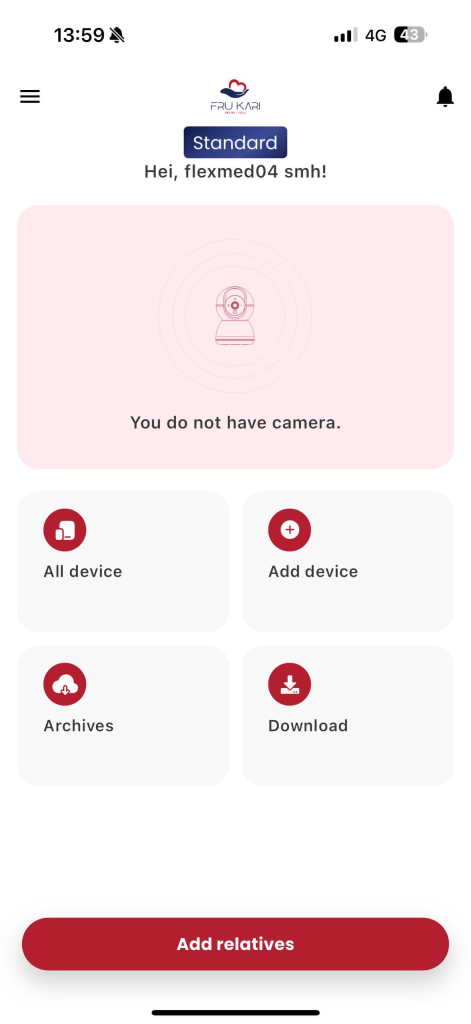
Figure 1: Select Menu (Icon ) .
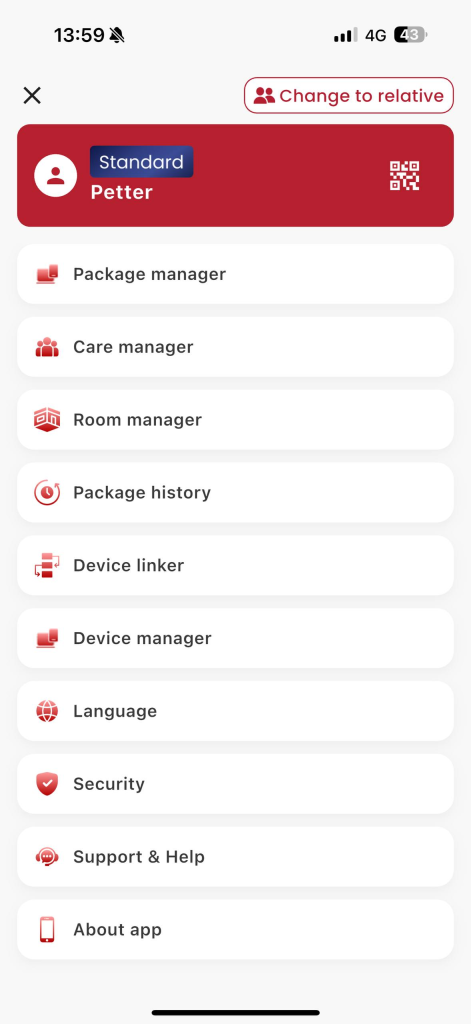
Figure 2: Click «Manage Package».
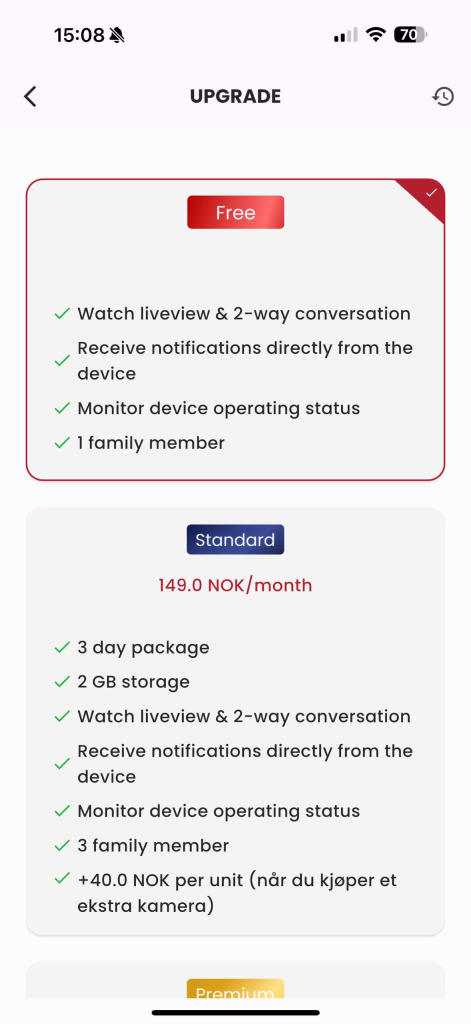
Figure 3: Tap Stand/Premium Package.
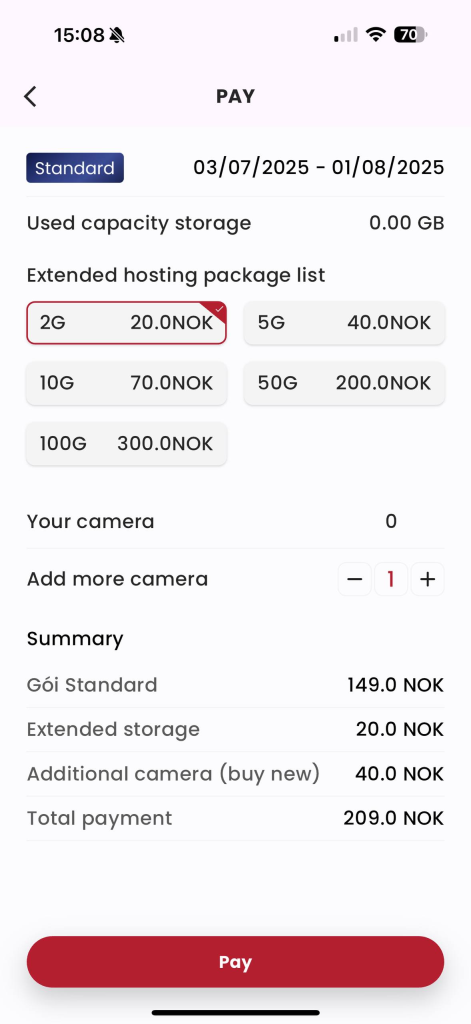
Step 4: Select the upgrade options, click «Pay»
4.2. Buy an extended hosting plan
- Description: The customer purchased an extended storage plan.
- Conditions: Customers have logged in to the Frukari App and are using the Standard/ Premium package.
- Steps:
Step 1: Open the Frukari app, Press Menu (Icon ) on the Tab Bar.
Step 2: Tap «Manage Package».
Step 3: Tap Plan in use.
Step 4: Click «Upgrade» in the extended storage plan section.
Step 5: Choose an Extended Hosting Plan
Step 6: Click «Pay» and make the payment according to the instructions.
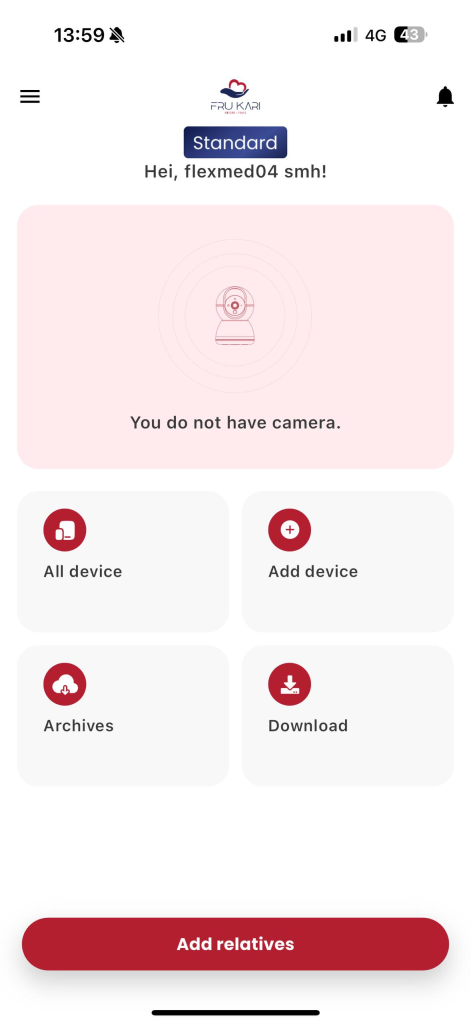
Figure 1: Select Menu (Icon ) .
Figure 2: Click «Manage Package».
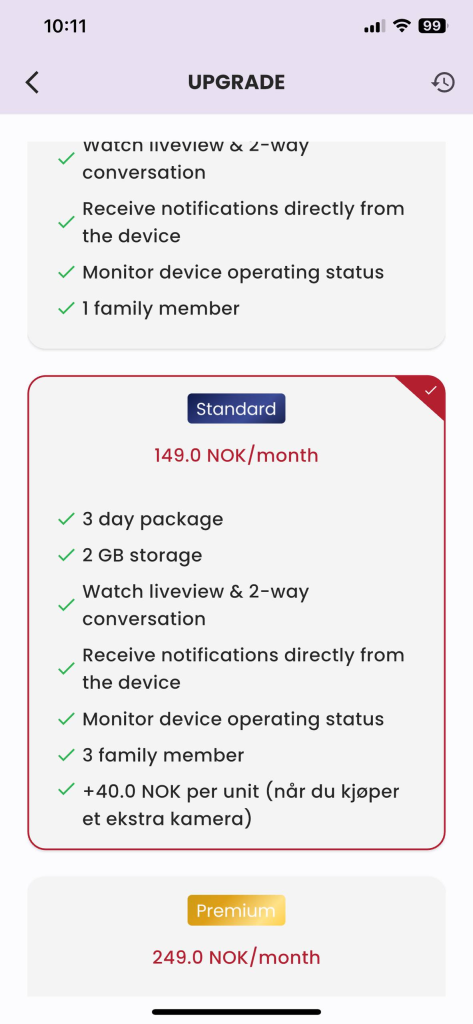
Figure 3: Tap the package in use.
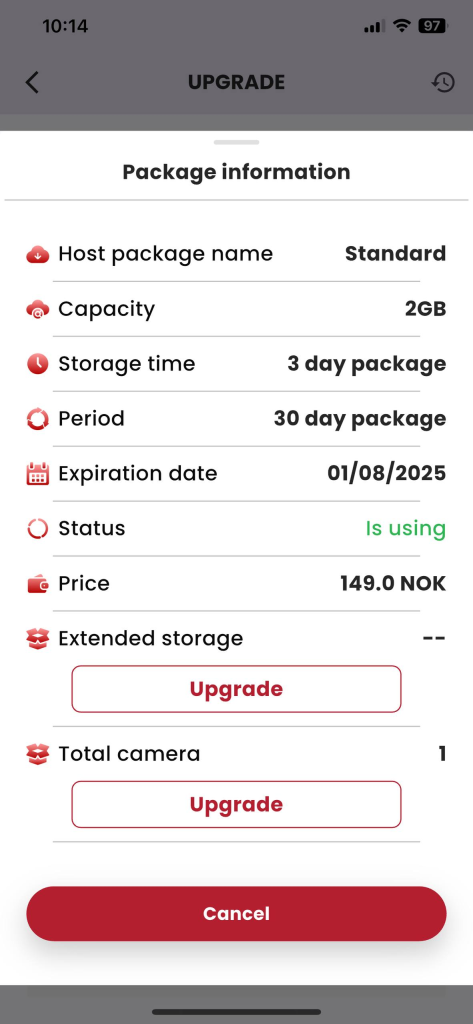
Step 4: Click «Upgrade» in the extended storage plan section.
Step 5: Select an extended storage plan, click «Pay»
4.3. Buy more cameras
- Description: The customer purchased an additional camera registered in the Frukari app.
- Conditions: Customers have logged in to the Frukari App and are using the Standard/ Premium package.
- Steps:
Step 1: Open the Frukari app, Press Menu (Icon ) on the Tab Bar.
Step 2: Tap «Manage Package».
Step 3: Tap Plan in use.
Step 4: Click «Upgrade» in the total number of cameras.
Step 5: Select the number of cameras
Step 6: Click «Pay» and make the payment according to the instructions.
Figure 1: Select Menu (Icon ) .
Figure 2: Click «Manage Package».
Figure 3: Tap the package in use.
Step 4: Click «Upgrade» in the extended storage plan section.
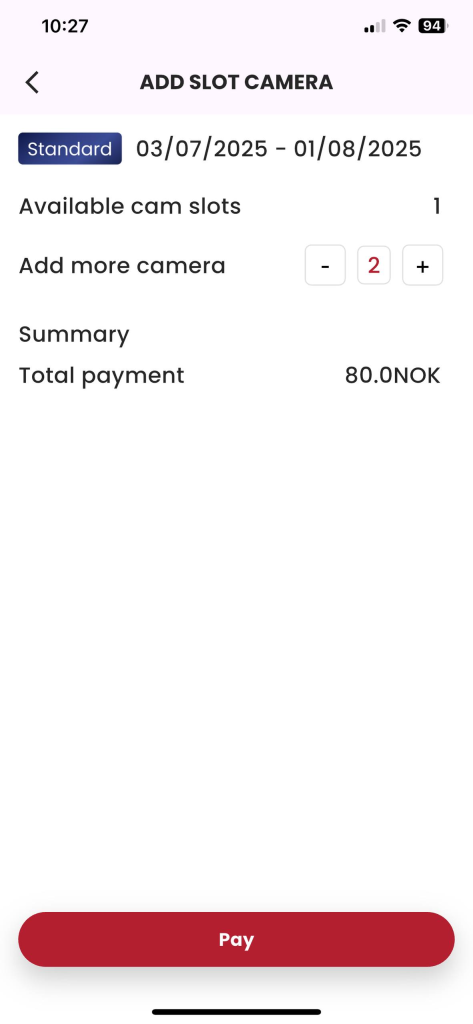
Step 5: Select an extended storage plan, click «Pay»
4.4. Manually renew your plan
- Description: The customer manually renews the main plan.
- Conditions: Customers have logged in to the Frukari Ownership App and are using the Standard/ Premium package with the status of «Pending Renewal».
- Steps:
Step 1: Open the Frukari app, Press Menu (Icon ) on the Tab Bar.
Step 2: Tap «Manage Package».
Step 3: Tap Stand/Premium Plan.
Step 4: Tap «Renew».
B5 Press «Pay» and make the payment according to the instructions.
Figure 1: Select Menu (Icon ) .
Figure 2: Click «Manage Package».
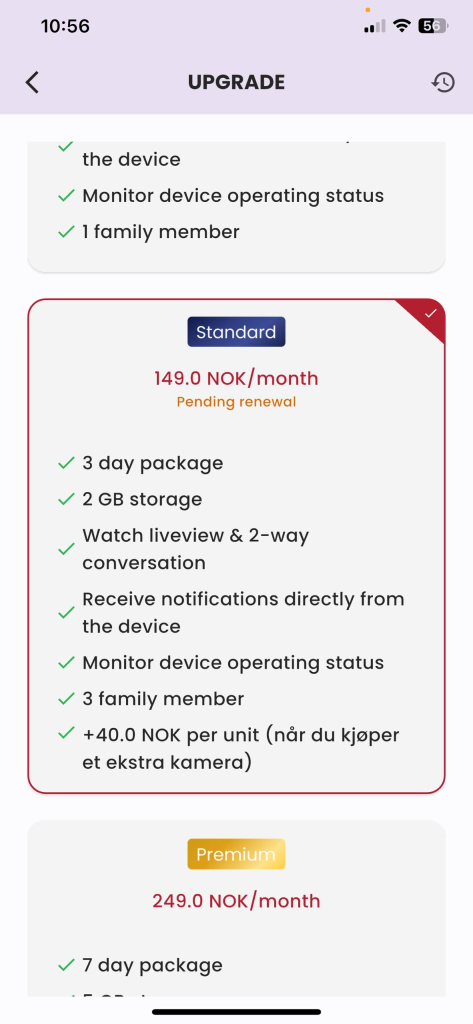
Figure 3: Tap the package in use.
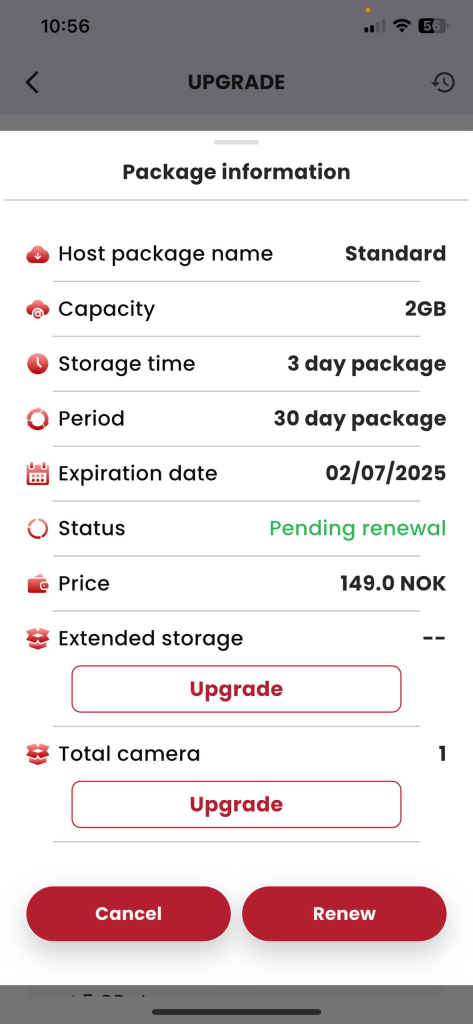
Figure 4: Click «Renew».
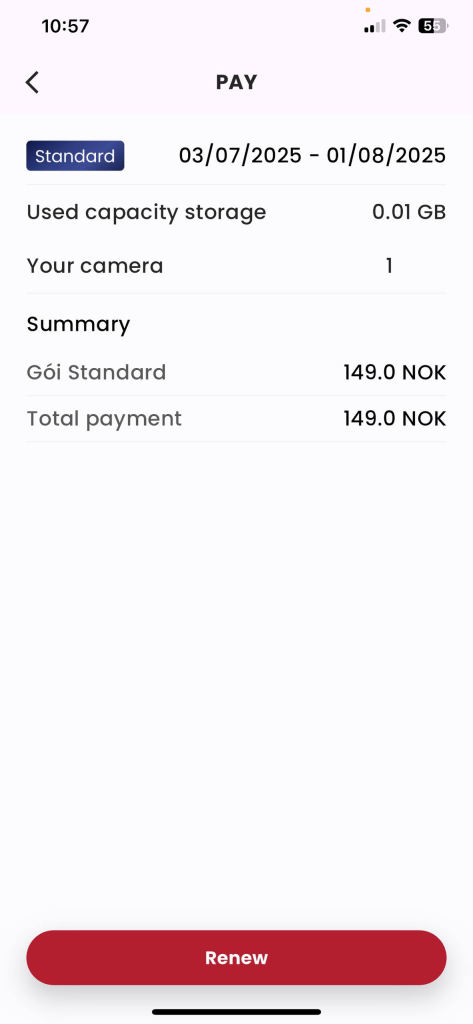
Figure 5: Click «Renew» and make the payment according to the instructions.
4.5. Cancel the main package
- Description: The customer cancels the main package.
- Conditions: Customers have logged in to the Frukari App and are using the Standard/ Premium package.
- Steps:
Step 1: Open the Frukari app, Press Menu (Icon ) on the Tab Bar.
Step 2: Tap «Manage Package».
Step 3: Tap Stand/Premium Plan.
Step 4: Tap «Cancel».
Step 5: Click the «Agree» popup Confirm.
Figure 1: Select Menu (Icon ) .
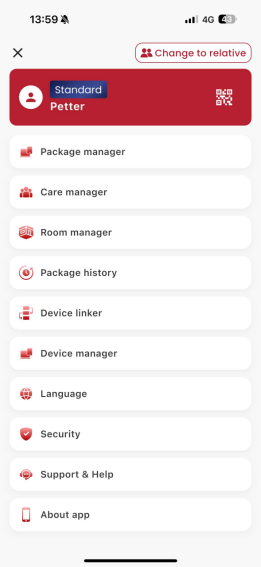
Figure 2: Click «Manage Package».
Figure 3: Tap the package in use.
Figure 4: Click «Cancel».
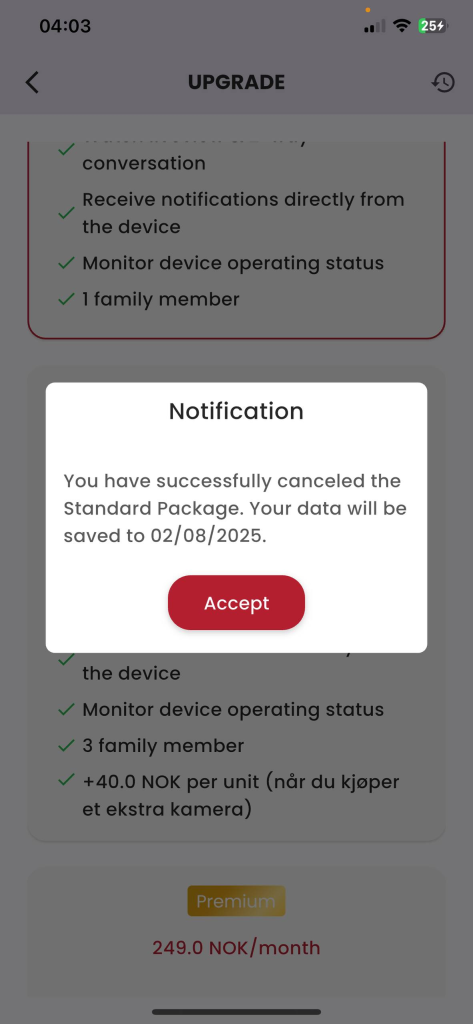
Step 5: Click the «Agree» popup Confirm.