

1 Instructions for logging in via BankID account
- Description: The customer logs in to the account to use the Frukari App.
- Eligibility: Customers have downloaded and installed the Frukari App on the App Store for iOS phones or CH Play for Android phones.
- Steps:
Step 1: Open the Frukari app, Press the «BankID» button.
Step 2: Enter your BankID account information and follow the instructions.
Step 3: Enter the app quick login passcode
Step 4: Re-enter the passcode
Step 5: Select the permission to interact with the «Caregiver» or «Owner» app
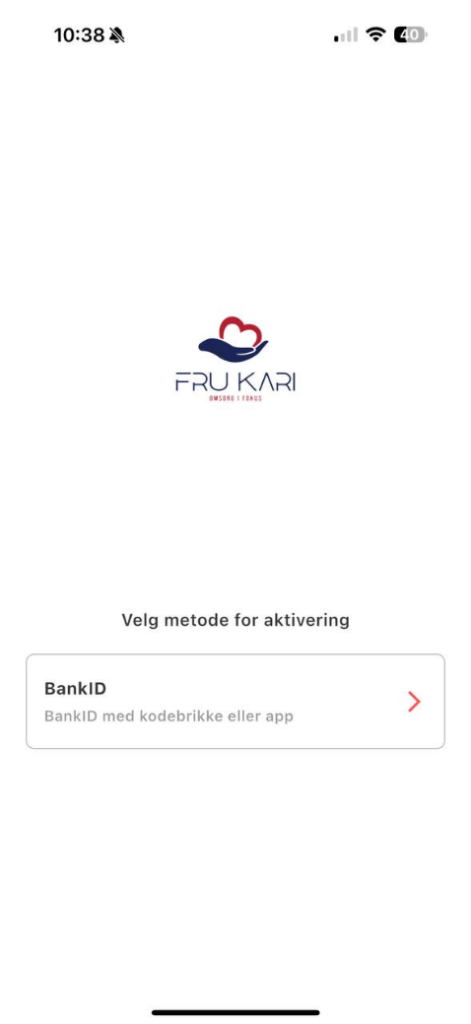
Figure 1. Press the «BankID» button.
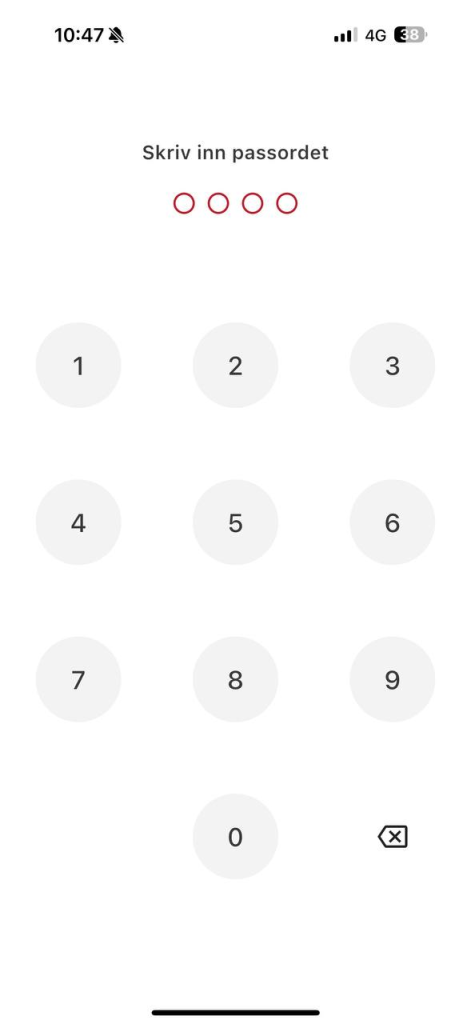
Figure 2. Enter the app quick login passcode
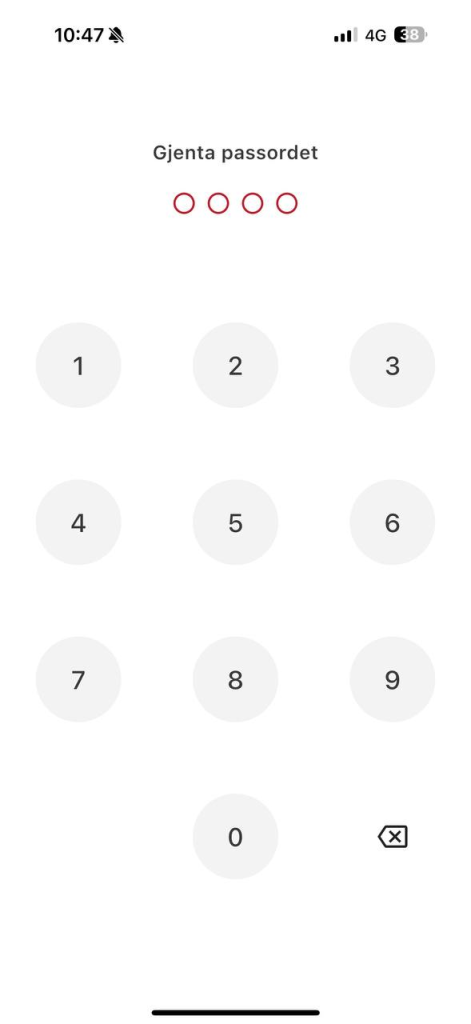
Figure 3. Re-enter the app quick login passcode.
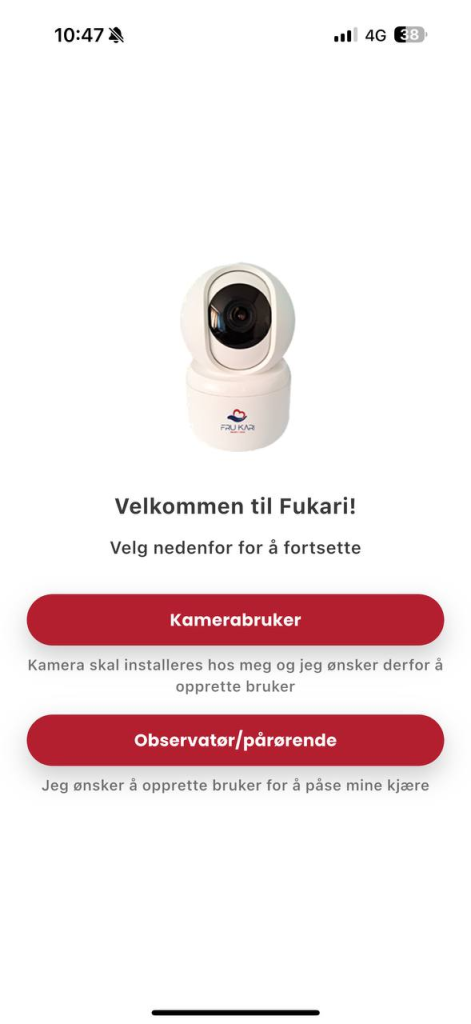
Figure 4: Choose permission to interact with the «Caregiver» or «Owner» app
2 Instructions for editing personal information
- Description: Client edits personal information of Frukari app account
- Condition: The customer has logged in to the Frukari App.
- Steps:
Step 1: Open the Frukari app, Tap Menu (Icon  ).
).
Step 2: Tap on the avatar
Step 3: Tap «Update Information».
Step 4: Enter and edit the information to be changed.
Step 5: Tap «Save Information».
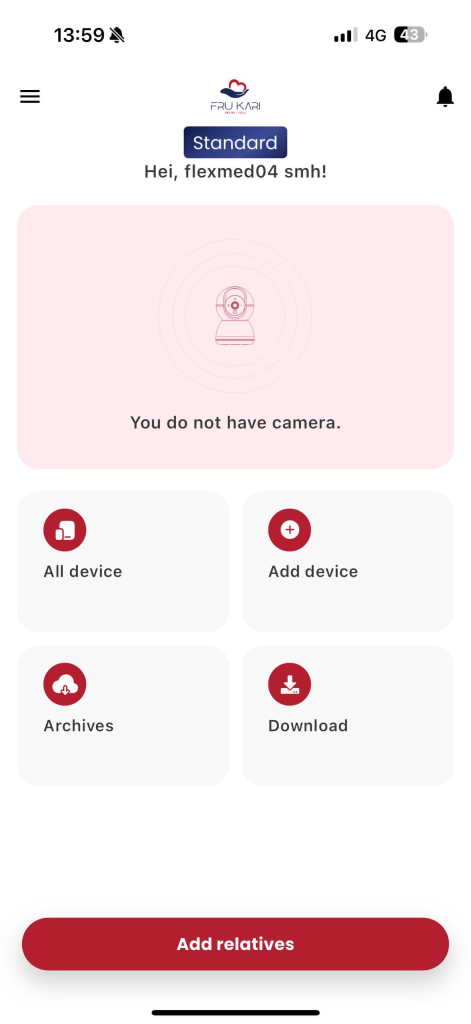
Figure 1: Select Menu(Icon ).
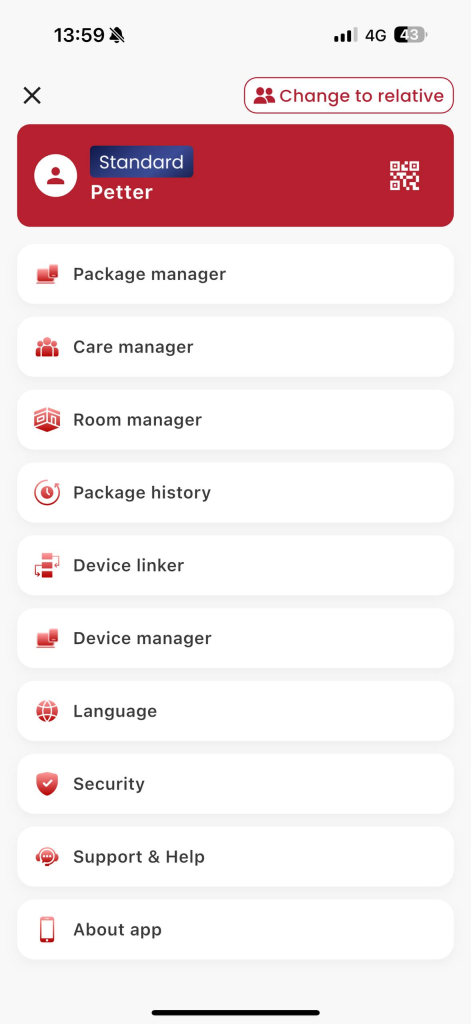
Figure 2. Tap the avatar.
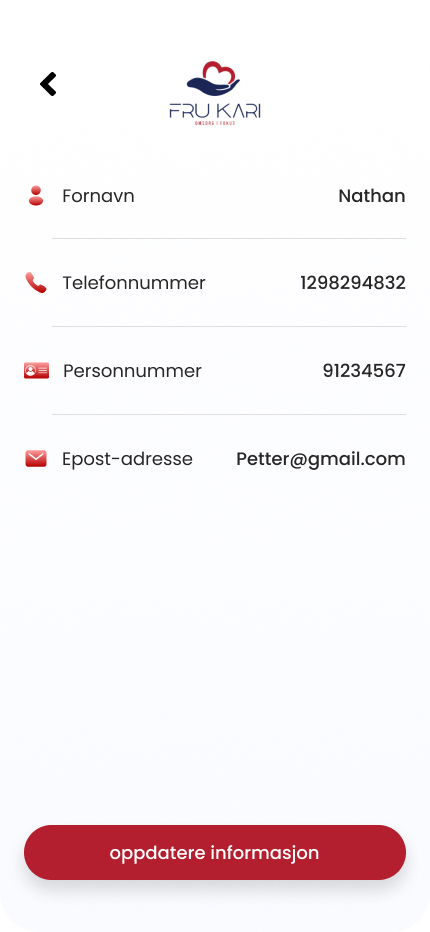
Figure 3. Tap «Update Information».
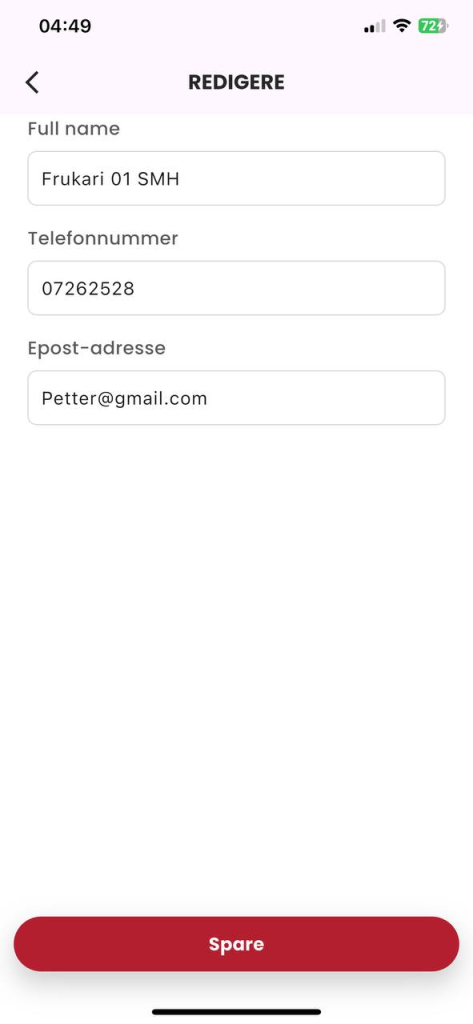
Figure 4. Enter and edit the information to be changed, click «Save».
3 Instructions for setting up account security
3.1. Change your passcode
- Description: The customer changed the quick login password of the Frukari App account.
- Condition: The customer has logged in to the Frukari App.
- Steps:
Step 1: Open the Frukari app, Tap Menu (Icon ) .
Step 2: Select the «Security» section.
Step 3: Tap «Change Passcode».
Step 4: Enter the old passcode
Step 5: Enter the new passcode.
Step 6: Re-enter the new passcode
Step 7: Tap «Save Information».
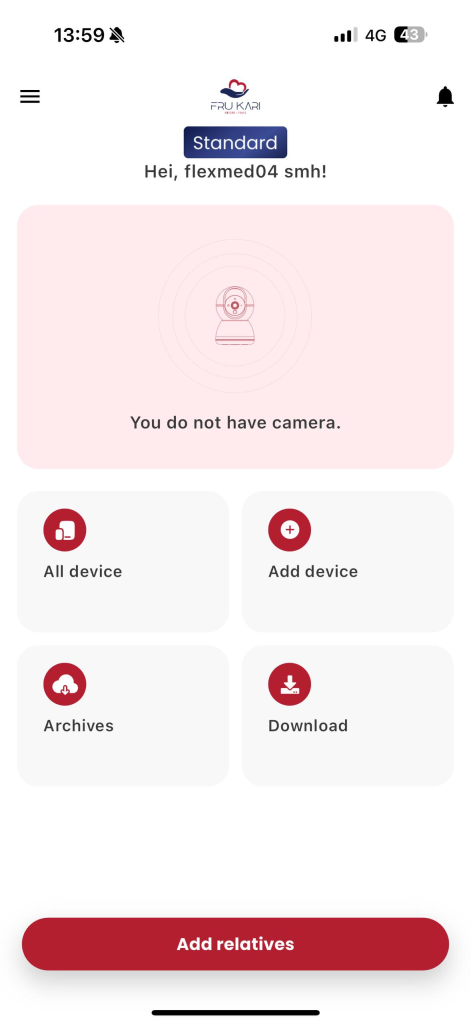
Figure 1: Select Menu(Icon ).
Figure 2: Select the «Security» item.
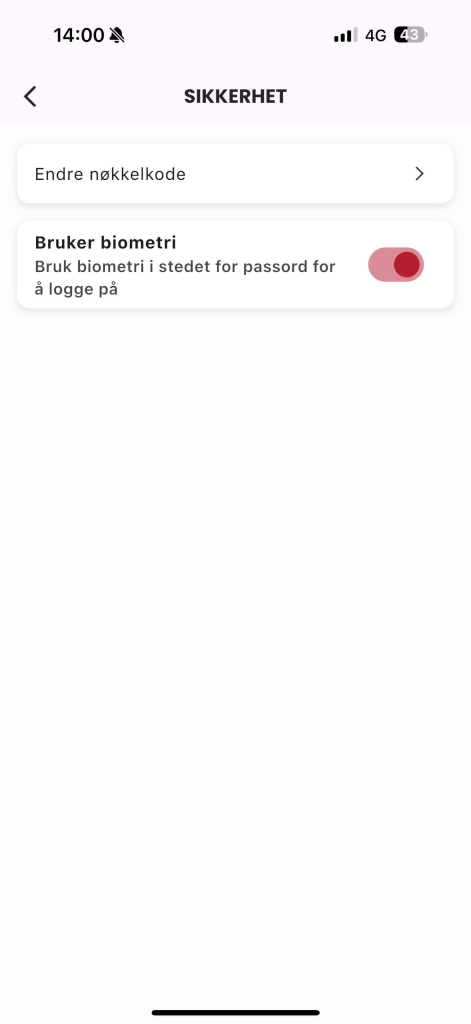
Figure 3: Click «Change Passcode».
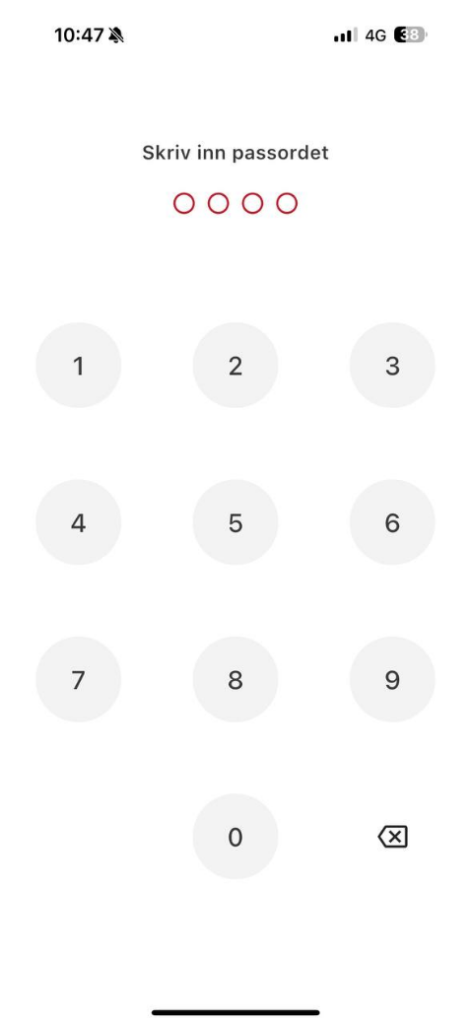
Figure 4: Entering the old passcode
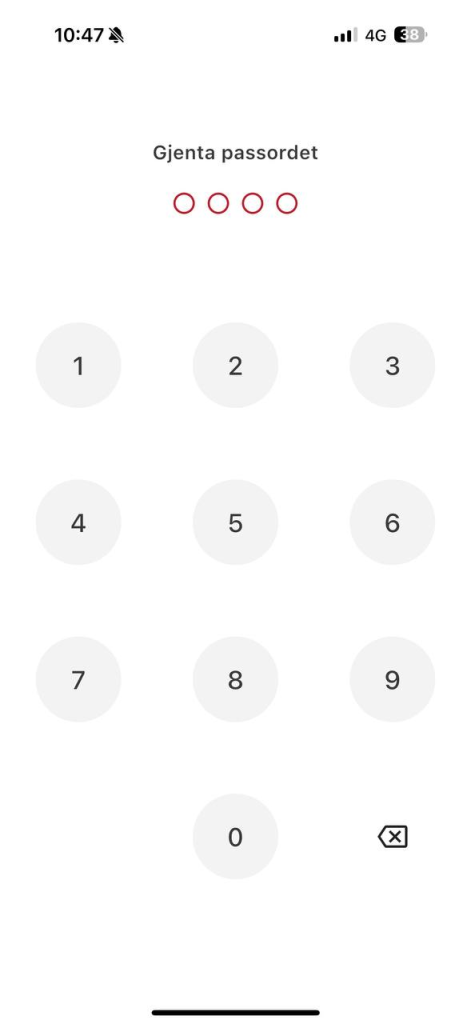
Figure 5: Entering a new password
Figure 6: Re-enter the new password
3.2. Set up biometrics
- Description: The customer set up a quick login to the Frukari app account via biometrics.
- Eligibility: The customer has set up biometrics on their phone and is logged in to the Frukari App.
- Steps:
Step 1: Open the Frukari app, Tap Menu (Icon )
Step 2: Select the «Security» section.
Step 3: Toggle On biometric mode.
Step 4: Scan the declared biometric (FaceID/Fingerprint) on the phone
Figure 1. Select Menu

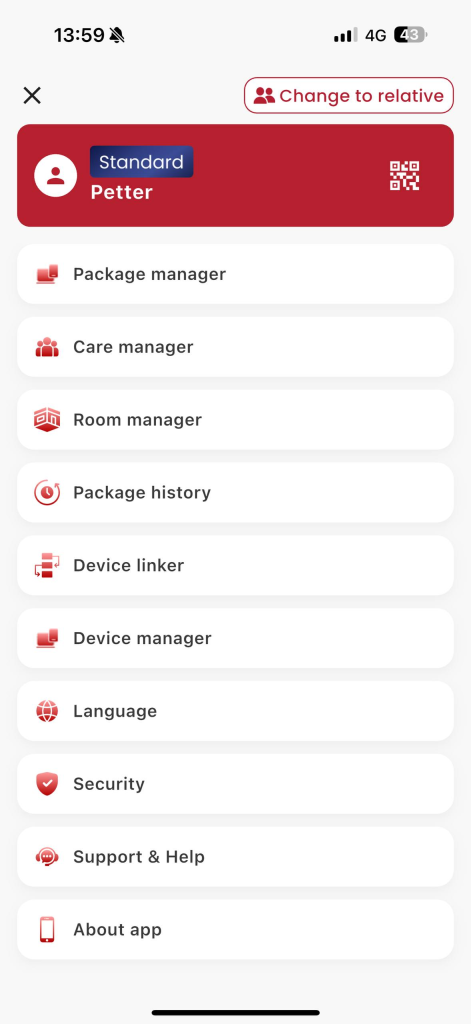
Figure 2: Select the «Security» item.
Figure 3: Toggle On biometric mode